
Configure the content feedback form#
This guide shows you how to configure who receives feedback submissions for your intranet content, and how to set up global feedback defaults.
Prerequisites#
Admin access to the Intranet Settings control panel.
The CLM behavior must be applied to your content types (contact your developer if unsure).
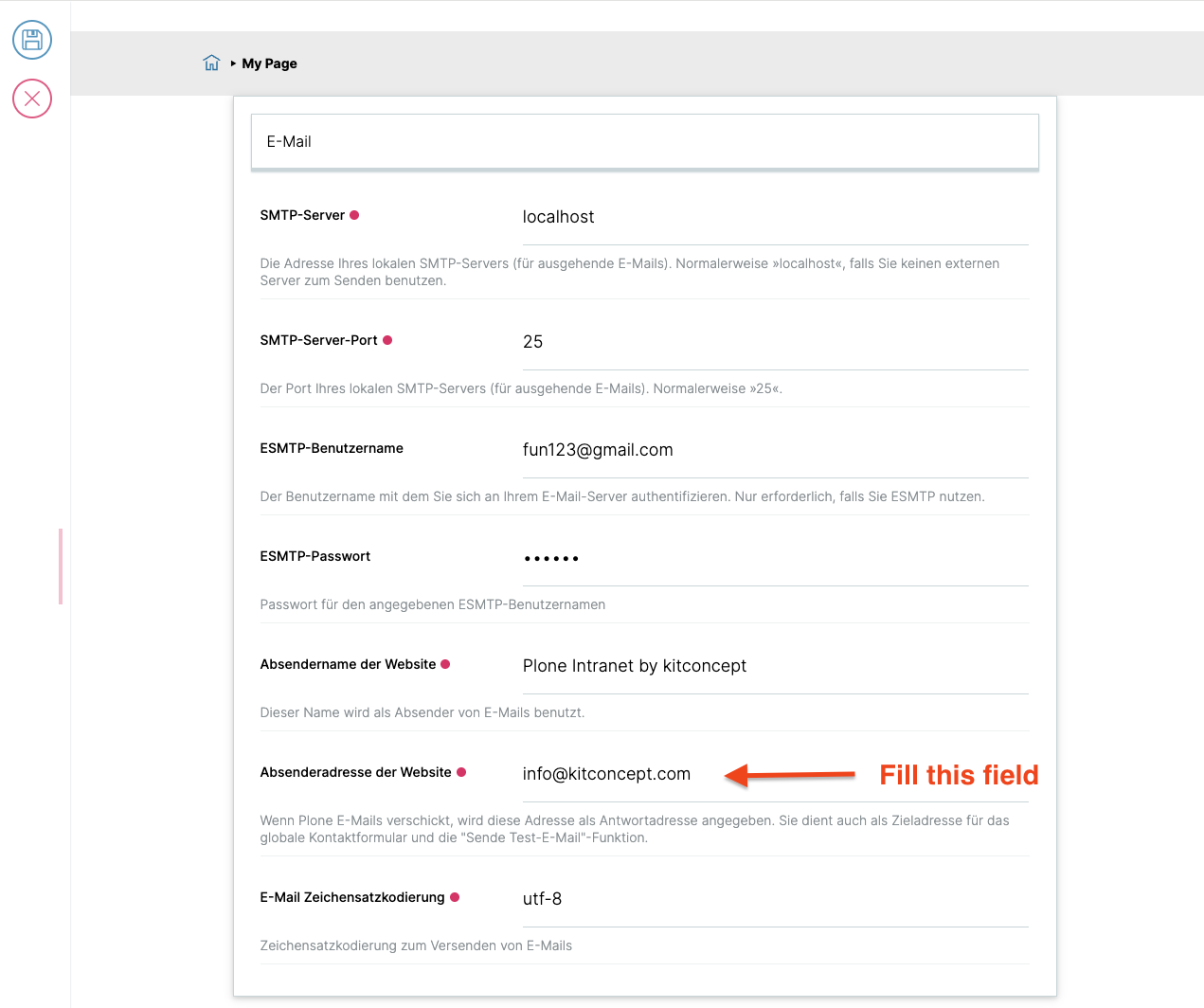
The Site 'From' address must be set in the Mail control panel.
How feedback routing works#
The recipient of the feedback is determined by the following priority:
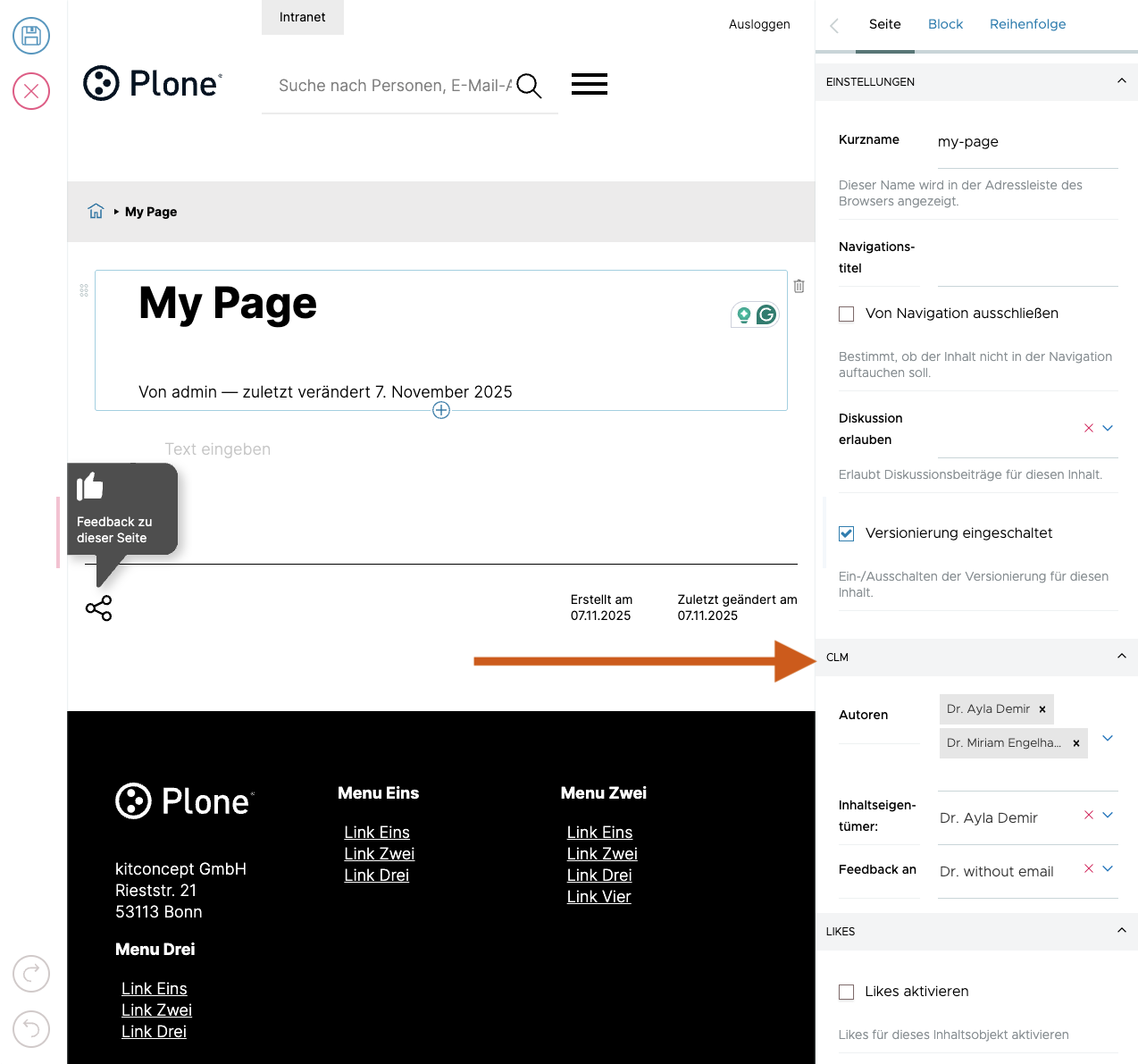
Feedback to field defined on the content item (if available)
Content Owner field defined on the content item (if available)
If neither field is filled but the content has a parent with a Content Owner set on any ancestor, the email is sent to that person
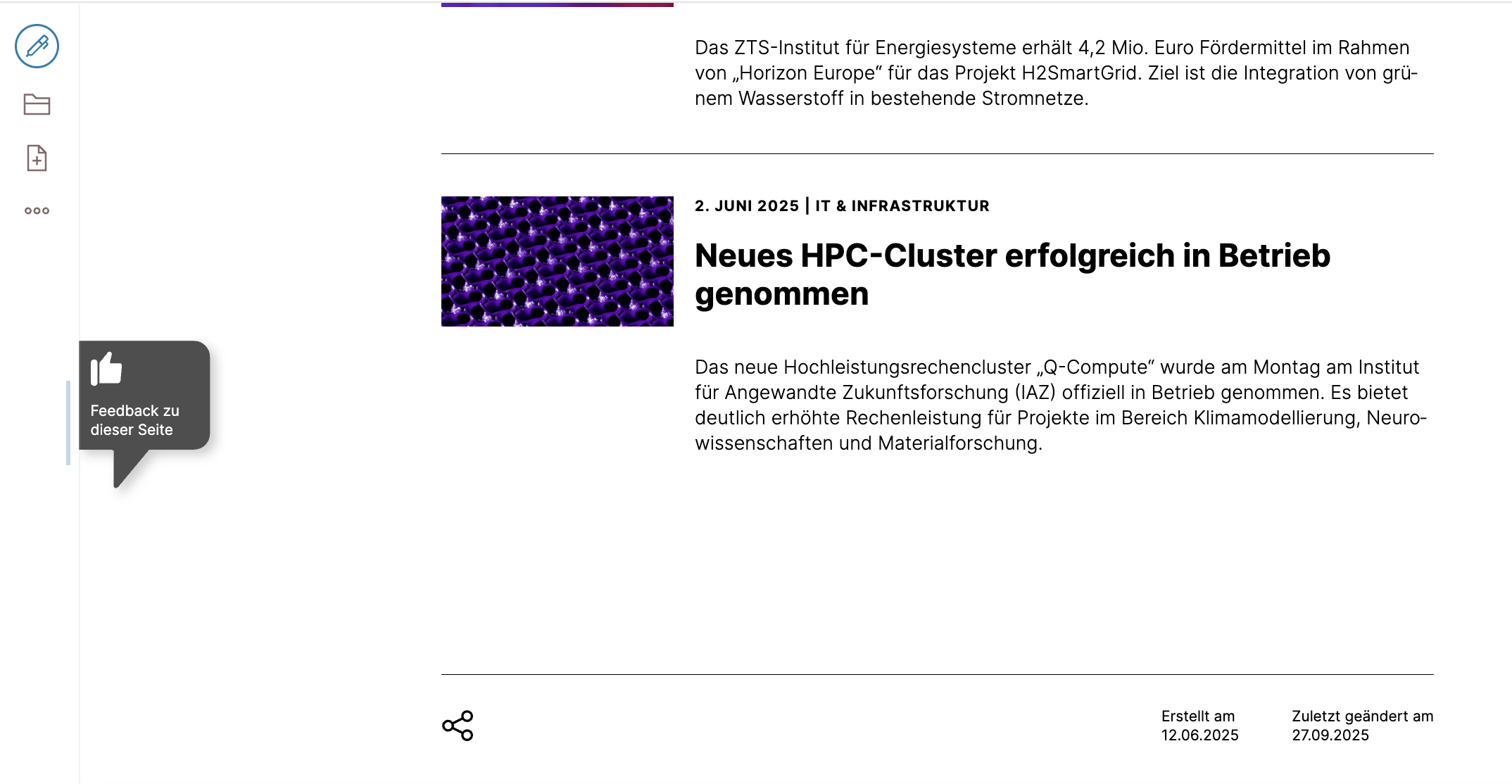
If Enable Sticky Feedback Button is enabled, a button will appear in a fixed position on the left side of the page. It appears automatically after 4 seconds or when the user scrolls past 500px.
Screenshots#
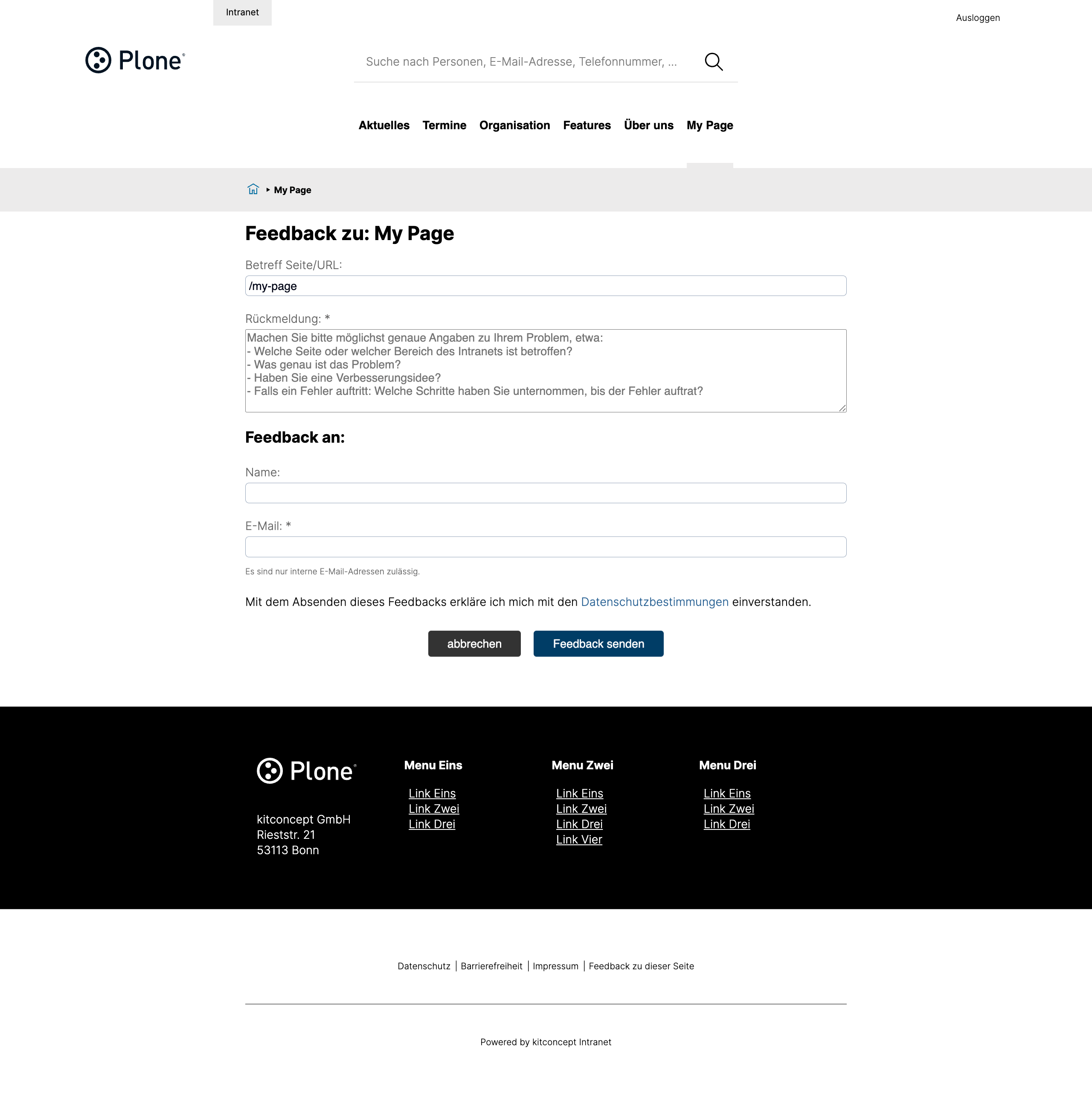
Feedback Form#
CLM Fields on a content item#
Mail control panel#
Intranet Settings#
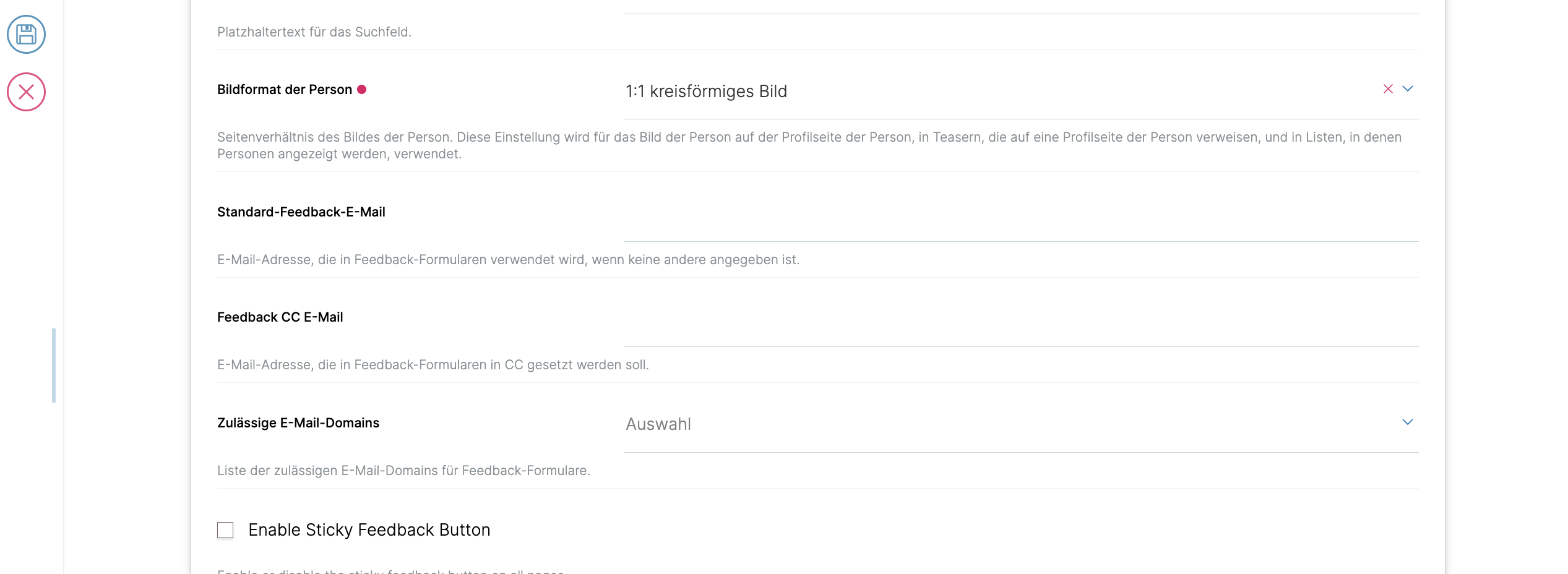
Global feedback settings#
These fields are in the Intranet Settings control panel:
Setting |
Type |
Description |
Default |
|---|---|---|---|
Default Feedback Email ( |
Text |
Used when no |
(empty) |
Feedback CC Email ( |
Text |
Additional recipient to receive a CC of all feedback submissions. |
(empty) |
Allowed Email Domains ( |
List |
Restricts feedback submission to specific email domains. |
(empty) |
Enable Sticky Feedback Button ( |
Boolean |
Shows a floating feedback button across all pages. |
|
Note
The Authors, Content Owner, and Feedback to fields on individual content items are provided by the CLM behavior. See the CLM behavior reference for technical details.